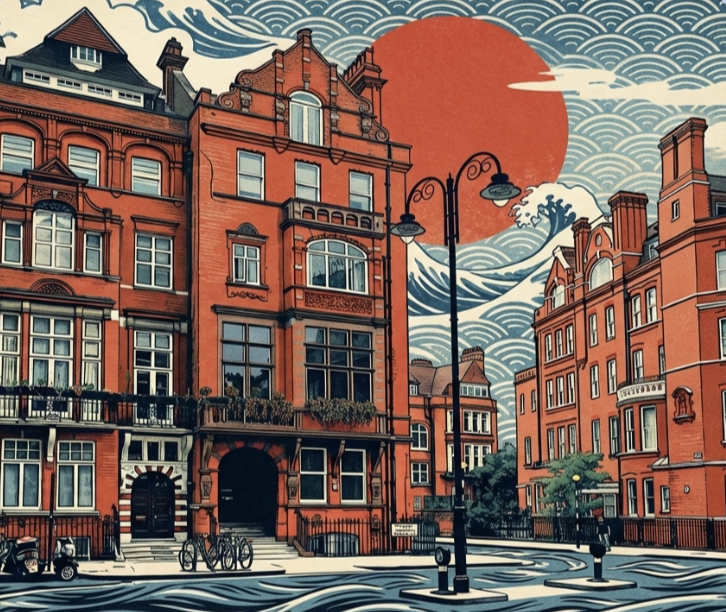
Turn a photo or sketch into a new image with a text prompt. Change a portrait's style, replace a product background, or render a drawing with Lanta AI's choice of Image To Image models.
• Photo to Photo• Multiple AI Models• Prompt-Guided Edits
Preparing local preview…
Reference Photos, New Results
Image To Image Examples: From Reference to Result
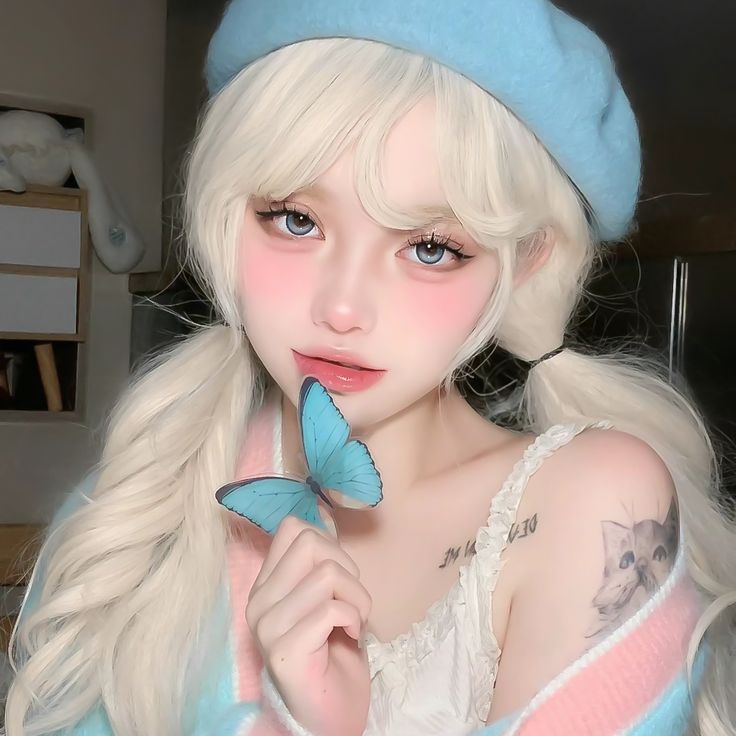
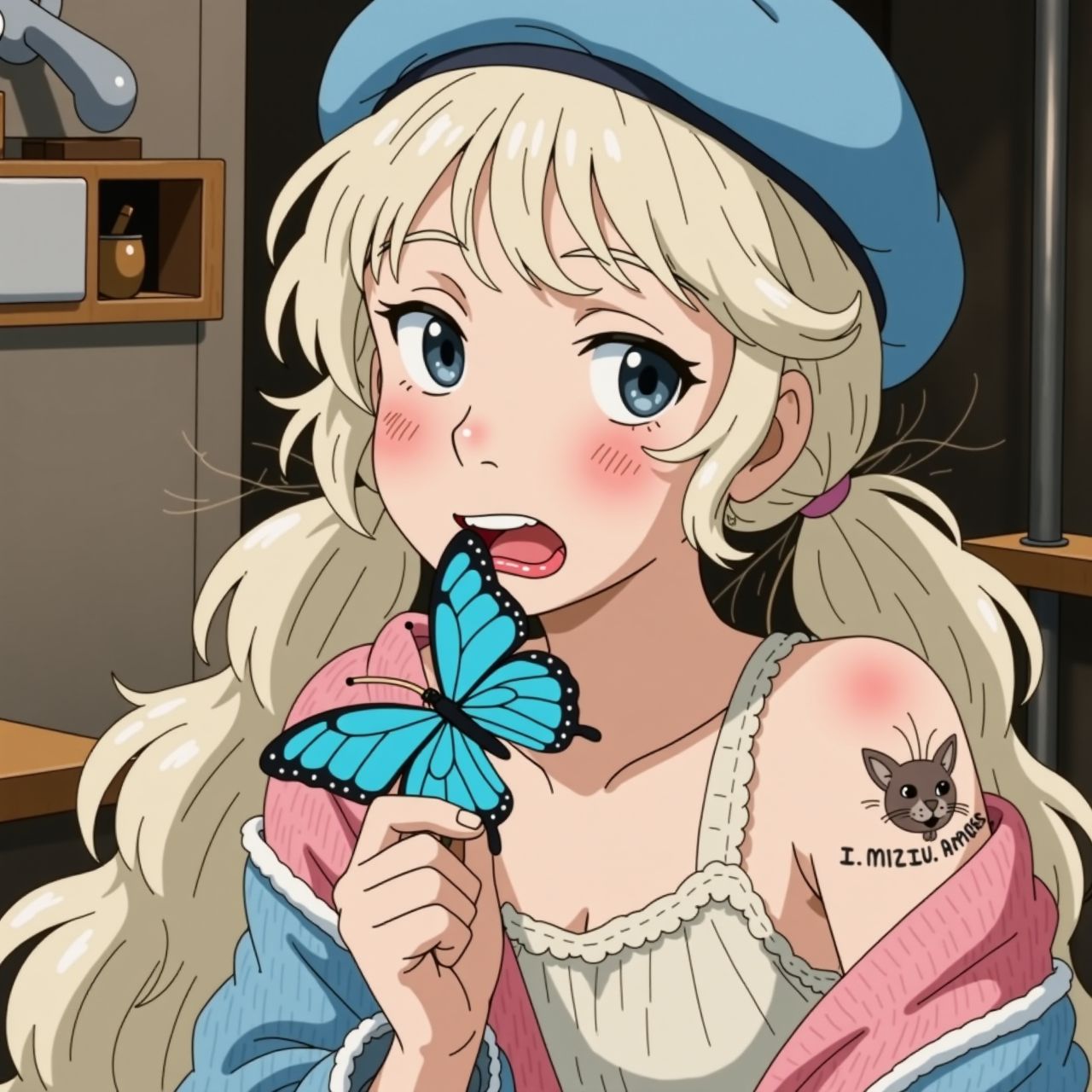
See a portrait restyled, a hairstyle changed, an old photo repaired, and two references combined. Each pair shows the source and result, with a prompt idea for a similar edit.
Reference01
Generated result
Turn a Portrait Into an Illustration
A portrait becomes a storybook illustration while the source supplies the pose and composition. Describe watercolor washes, fine ink lines, and warm light to guide the new finish.
Prompt idea
Keep the person, seated pose, camera angle, and surrounding composition. Reinterpret the scene as a hand-painted storybook frame with soft watercolor backgrounds, warm afternoon light, and delicate ink details.
Public Lanta AI example · Separate from this site’s generations and account creations
Reference02
Generated result
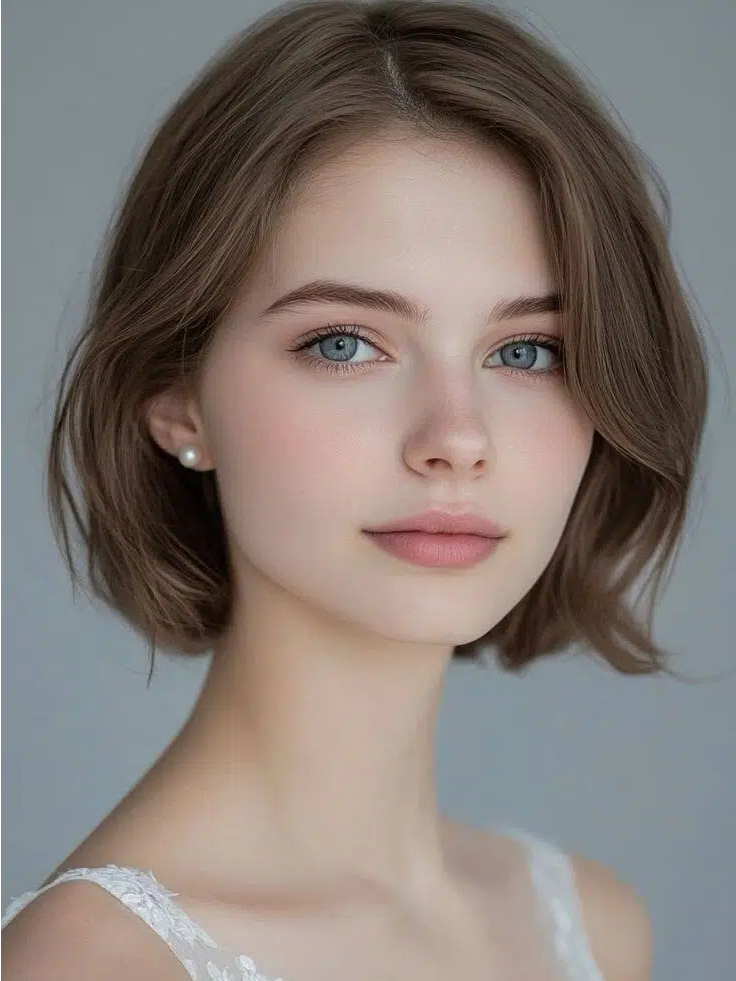
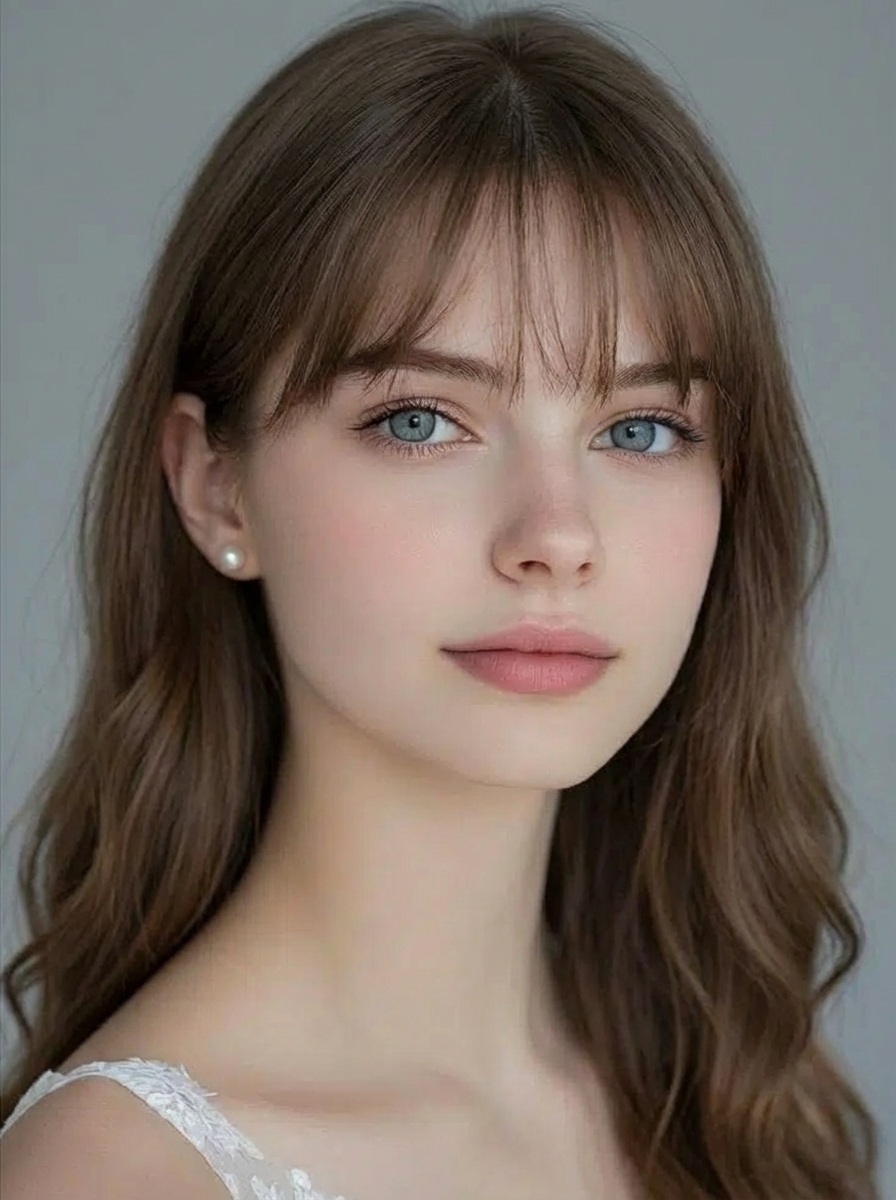
Try a New Hairstyle From a Photo
See how bangs and soft waves change a portrait. The source photo gives the model a reference for the face, clothing, and crop while your prompt focuses on the hair.
Prompt idea
Keep the face, expression, clothing, shoulder position, background, and portrait crop. Replace the straight hairstyle with soft Korean air bangs and loose shoulder-length waves in the same hair color.
Public Lanta AI example · Separate from this site’s generations and account creations
Reference03
Generated result
Restore a Faded Portrait
Generate a cleaner version of a scratched or faded photograph. Ask for repaired surface marks and balanced contrast, using the original portrait as a reference for faces, clothing, and framing.
Prompt idea
Keep the people, clothing, expressions, and original framing. Repair visible scratches and faded areas, balance the contrast, recover facial detail, and preserve the character of the old photograph.
Public Lanta AI example · Separate from this site’s generations and account creations
References04
Generated result
Create One Image From Two References
A single source may not show every detail you need. Add a second reference for a shape, material, or color, then describe how the two should come together in one generated image.
Prompt idea
Use the main subject from the first image and the visual details from the second. Create one connected composition with consistent perspective, lighting, scale, and shadows. Do not add text.
Public Lanta AI example · Separate from this site’s generations and account creations
Start With an Existing Image
What Is Image To Image AI?
Image To Image AI generates a new image from an uploaded photo, drawing, or other visual reference. The source gives the model a subject, pose, layout, or color palette to work from. Your text prompt describes the changes, such as a different background, outfit, art style, or lighting.
Unlike text-to-image generation, you do not have to describe the whole scene from scratch. Unlike a photo filter, Image To Image can redraw objects and reinterpret the scene. That also means faces, lettering, and fine details may change, so check the result against your original.
From Upload to Download
How to Use Lanta AI Image To Image
Upload the image you want to work from, describe the edit, and choose your generation settings.
01
Upload Your Source Image
Start with a portrait, product photo, sketch, or illustration. Choose a clear source where the subject and any details you want to reuse are easy to see.
02
Describe the Changes
Tell the AI what the new image should show. For example: change the jacket to blue, keep the seated pose, and replace the wall with a garden.
03
Choose a Model and Image Size
Select an Image To Image model, then pick an available aspect ratio and resolution. Check the credit cost on the Generate button before submitting.
04
Generate and Download
Open the generated image to inspect it at full size, then download it. To try another version, use Redo from your history and adjust the prompt or model.
Images and workflow descriptions are from the public Lanta AI reference. Examples are separate from this site’s generations and account creations. Generation, generated downloads, and history are not available.
More Ways to Use Your Photos
What Can You Create From Your Image?
Use Image To Image to change the part of a picture that no longer fits your idea. Start with the subject you already have and explore another style, setting, or design.
Turn Photos Into AI Art
Try a watercolor portrait, an ink drawing, or a painted landscape from your own photo. The reference gives the model a starting composition; your prompt sets the medium, colors, and texture.
Create New Product Scenes
A plain packshot can become the starting point for a campaign concept. Place the product on stone, linen, or a studio plinth, and describe the background, reflections, and shadows. Check labels and packaging before publishing.
Turn a Sketch Into a Render
Upload a line drawing and ask for the materials it does not yet show: brushed metal, glazed ceramic, stitched fabric, or painted wood. Use its outline to guide a more finished design concept.
Try Different Outfits in a Portrait
Change a jacket, fabric, color, or accessory using the original portrait as a reference. Ask to retain the face and pose, then review the generated clothing and facial details together.
Make Variations of the Same Photo
What would the scene look like at dusk, in winter, or under studio lighting? Generate separate versions from one source to explore the differences without arranging another shoot.
Explore a New Look for a Room
Use a room photo to test wall colors, furniture, rugs, and lighting. Name the windows and layout you want to retain; treat the result as a visual concept, not an exact architectural plan.
Your Image, More Ways to Edit
Why Choose Lanta AI for Image To Image?
Lanta brings reference uploads, model selection, and generation history into one workspace. Test a new look for the same image, add another visual reference, or return to an earlier edit.
Try Different Models on the Same Image
A portrait restyle and a product mockup call for different results. Choose from Seedream, GPT Image, Nano Banana, Qwen, Wan, and FLUX to see how each interprets your source photo and edit request.
Give Each Reference a Different Role
Your subject may come from one photo while the material or color comes from another. On models that accept multiple images, upload both and describe which details to borrow from each.
Reuse an Edit From Your History
You do not have to rebuild a previous request. Redo loads its reference images, prompt, and settings back into the generator, so you can change the background, try another model, or refine one detail.
Images and workflow descriptions are from the public Lanta AI reference. Examples are separate from this site’s generations and account creations. Generation, generated downloads, and history are not available.
Choose How Your Image Is Generated
Image To Image Models and Output Settings
Reference limits, image shapes, and resolutions vary by model. Choose the settings that fit the photo you are uploading and the image you want to create.
One Reference or Several
Models accept different reference counts, with limits ranging from one to ten images. The uploader changes to match your selection; multiple references guide one result rather than a batch of separate edits.
Portrait, Square, or Landscape
Choose from the selected model's ratios, such as 1:1 for a square image or 9:16 for a vertical visual. Set the output shape before generating rather than relying on a crop afterward.
Resolution Up to 4K
Some models offer output resolutions up to 4K; others have fewer size options. A larger output does not guarantee that tiny lettering or facial details will match the source.
Credits Shown Before Generation
The Generate button displays the cost for the current model and resolution. Check it again after changing settings, especially when trying several versions of the same image.
Images and workflow descriptions are from the public Lanta AI reference. Examples are separate from this site’s generations and account creations. Generation, generated downloads, and history are not available.
Prepare Your Reference Image
Get Better Results From Your Reference Image
Image To Image redraws the scene rather than locking the original pixels. Give the model a clear source and a focused edit, then compare the generated result with the photo you uploaded.
Use a photo where the face, product, or object you want to edit is clearly visible. Heavy blur and cropped details give the model less to work from.
Name what should stay, such as the pose, product angle, or room layout, alongside the change you want.
When adding several references, explain which image supplies the subject and which supplies the style, material, or setting.
Check faces, hands, logos, and packaging text at full size. A request to preserve a detail does not guarantee an exact match.
If the result misses the brief, reuse the request and change one part of the prompt at a time.
Keep your original image. For exact lettering, logo placement, or pixel-level corrections, finish the generated result in a dedicated image editor.
Continue Working With Your Image
Try another image model, combine references, make a targeted edit, or turn your generated image into a video with these related Lanta AI tools.
Images and workflow descriptions are from the public Lanta AI reference. Examples are separate from this site’s generations and account creations. Generation, generated downloads, and history are not available.