MMakeup AI
Login to get 3 credits
HomeCommunityMy Creations

AI Video

AI Video GeneratorVideo EffectsAI DanceNew

AI Image

AI Image GeneratorImage Effects

Featured

HappyHorse 1.0Seedance 2.0GPT ImageAI MakeupImage StylerLip SyncAI Age Progression
Live & part try-onLive Try-OnLipstickFoundationBlushEyeshadowEyelinerMascaraBrowsContourHighlight
Pricing

Preparing local settings preview…

Features

AI Video GeneratorAI DanceAI Image GeneratorToolsImage to VideoText to VideoVideo to VideoAI MakeupLip SyncVideo to Ghibli StyleImage to Ghibli StyleImage EffectsVideo Effects

Video Effects

AI Kissing Video GeneratorAI French Kiss Video GeneratorAI Hug Video GeneratorAI Muscle VideoEarth Zoom Out

AI Guides & Learning

AI Creation GuidesAI Image to Video GuideAI Image Creation GuideBlog

Models

Video ModelsImage ModelsSeedance 2.0Happy Horse 1.0Kling 3.0Kling AIGrok ImagineSora 2Wan 2.2Veo 3GPT Image 2Nano Banana Pro

About & Trust

Sign inAbout Makeup AIRefund PolicyPrivacy NoticeTerms of ServiceContent Moderation PolicyCookiesDMCA
MMakeup AICopyright © 2026 Makeup AI
MMakeup AI
Login to get 3 credits
HomeCommunityMy Creations

AI Video

AI Video GeneratorVideo EffectsAI DanceNew

AI Image

AI Image GeneratorImage Effects

Featured

HappyHorse 1.0Seedance 2.0GPT ImageAI MakeupImage StylerLip SyncAI Age Progression
Live & part try-onLive Try-OnLipstickFoundationBlushEyeshadowEyelinerMascaraBrowsContourHighlight
Pricing
Home / Video models / Create Videos with MindVideo AI

Create Videos with MindVideo AI

Turn a written idea or source image into a short video. Describe the subject and motion, choose the settings available for your project, and generate directly in Lanta AI.

  • Text prompts into video
  • Images brought into motion
  • Flexible generation controls
Start Creating

Current form model: Wan 3.0

Reference Media0/20
Local preview limit: 10MB per file; this does not imply generation support. image/*,video/*,audio/*
0/5000
5s
Video Ratio
Quality

Local parameter and file preview only. No upload, generation, or credits used.

The URL model ID is unknown and was not applied. Current form model: Wan 3.0 (image-to-video).

Current form model: Wan 3.0

Public examples

These are public references. View your own generated tasks in My Creations.

Public examples area
Browse public video examples

Files stay on this device. Generation does not upload, submit tasks, or use credits.

Source: Lanta AI public page at capture time. The following performance, pricing, licensing and service statements belong to that source and are not independently verified here; examples are not project generations.

Text and image workflows

Create from Text or Images with MindVideo AI

Begin with a written scene when you need to build an idea from scratch, or use an existing image when the subject and composition are already defined. The generator keeps both paths in one workspace.

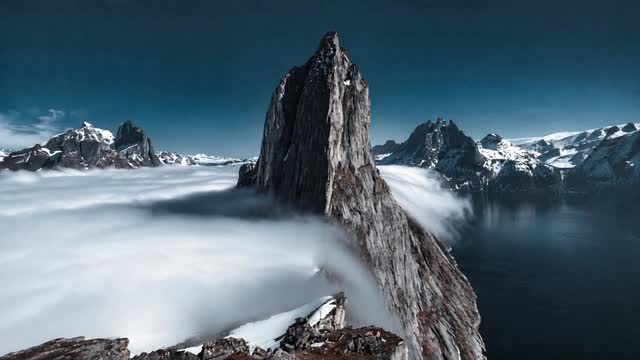
Turn a Written Scene Into a Moving Concept

Start with the subject, action, setting, and camera move you want to see. Use the generated clip as a story opening, social hook, or visual direction, and review the settings and credit estimate shown in the form before generating.

Create From Text
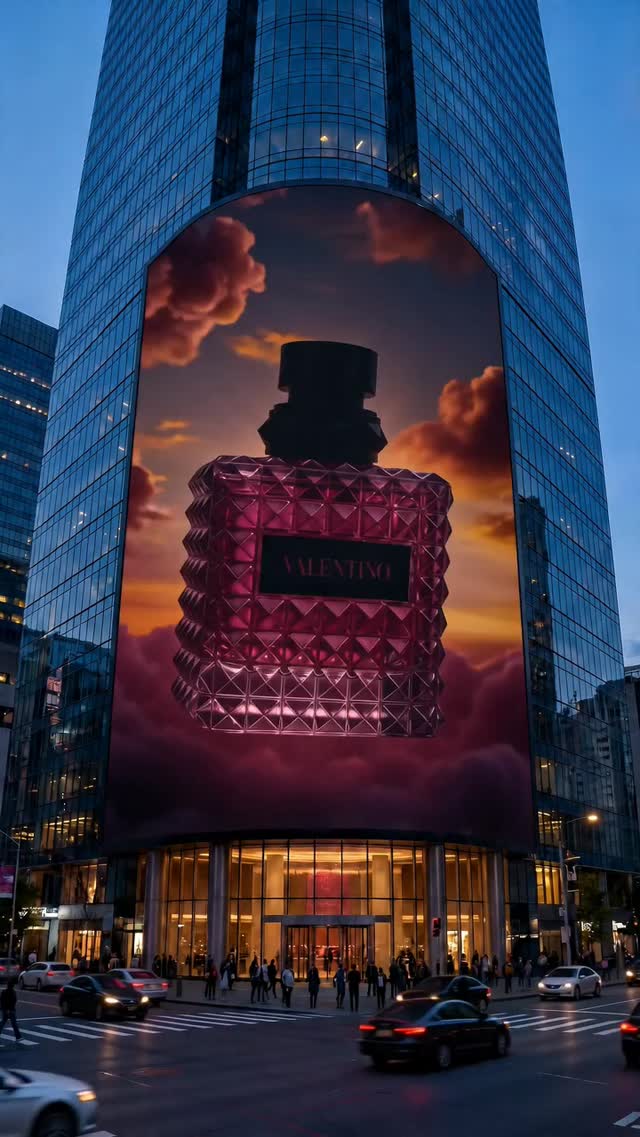
Bring a Photo or Product Shot Into Motion

Upload an image that already defines the subject and composition, then describe the motion that should happen next. Try a slow camera push, moving light, or subtle background movement for a portrait, illustration, or product reveal.

Animate an Image

Source: Lanta AI public page at capture time. The following performance, pricing, licensing and service statements belong to that source and are not independently verified here; examples are not project generations.

Prepare your image before adding motion

For a portrait, product photo, or illustration, decide what must stay recognizable and where movement can happen before you upload it.

  • Leave room for the action

    A person walking to the right needs space on that side of the frame. For a tightly cropped portrait or product, start with a small movement rather than a wide camera sweep.

  • Choose one focal point

    Use a frame where the main subject is easy to separate from the background. If several objects compete for attention, crop the image around the one the video should follow.

  • Plan where text will go

    Leave clear space for a headline or price. Add exact lettering in your editor after generation, especially when a moving label or a changing camera angle could make it hard to read.

Source: Lanta AI public page at capture time. The following performance, pricing, licensing and service statements belong to that source and are not independently verified here; examples are not project generations.

Creative use cases

Where MindVideo AI Fits Your Creative Workflow

Use short generated clips to test a social opening, add motion to product imagery, or preview a story beat before committing to a longer edit or production.

Turn Text Prompts Into Social Hooks

Start with a short scene description, generate an opening shot for a Reel, Short, or TikTok post, then add captions, voice-over, and your final edit.

Animate Product Photos Into Campaign Concepts

Use the image-to-video workflow to explore camera movement, lighting, or a seasonal campaign direction while keeping the product as the visual anchor.

Preview Story Ideas Before Production

Turn a written beat or illustration into a short scene preview, then use the result to discuss atmosphere, motion, and pacing before a larger production.

Source: Lanta AI public page at capture time. The following performance, pricing, licensing and service statements belong to that source and are not independently verified here; examples are not project generations.

A simple workflow

From First Idea to Finished MindVideo AI Clip

Choose the right starting point, direct one clear action and camera move, then review the result and refine only what needs to change.

  1. 01

    Choose Your Starting Point

    Choose Text to Video when your scene starts as a written idea. Choose Image to Video when a photo or illustration already defines the subject, composition, or visual direction.

  2. 02

    Direct the Motion

    Describe the main action and camera movement, then review the duration, ratio, resolution, audio, reference, access, and credit options shown in the form.

  3. 03

    Review and Refine

    Check motion, faces, hands, text, product edges, and sound in the result. If something drifts, simplify one action or camera move before changing several settings at once.

Source: Lanta AI public page at capture time. The following performance, pricing, licensing and service statements belong to that source and are not independently verified here; examples are not project generations.

MindVideo AI prompts for three everyday projects

Use these examples as starting briefs. Match the description to your own source material, then keep the first attempt focused on one visible action.

  • 01

    A calm product reveal

    Starting point

    Image to Video. Use a front-facing photo of a skincare bottle on a simple background.

    Prompt

    Keep the bottle upright and still. A soft reflection travels slowly across the glass while the camera moves slightly closer. Keep the cap, label placement, and background consistent. End with the bottle centered and clear space above it.

    What to review

    Check the silhouette and label placement before adding a headline. If the bottle warps, try a locked camera with only the lighting change.

  • 02

    A portrait with subtle movement

    Starting point

    Image to Video. Choose a clear portrait with the eyes visible and some space around the head.

    Prompt

    The person blinks once, gives a small smile, and turns slightly toward the window. A few strands of hair move gently. Keep the camera still and preserve the original framing, clothing, and background.

    What to review

    Compare the face at the beginning and end. If a turn changes the identity, reduce it and keep only the blink and expression.

  • 03

    An opening scene from text

    Starting point

    Text to Video. Start with a setting and one event rather than a full plot.

    Prompt

    A small bookshop on a rainy evening. From inside, the camera faces the entrance as a visitor closes a wet umbrella and steps through the door. Warm shelves in the background, reflections on the pavement outside, a slow forward camera move.

    What to review

    Make sure the entrance is readable before adding another event. This shot can introduce a story; the next action can be a separate clip in your edit.

Source: Lanta AI public page at capture time. The following performance, pricing, licensing and service statements belong to that source and are not independently verified here; examples are not project generations.

Turn the first result into a better second version

Keep the input, selected model, and settings steady while you revise one part of the prompt. That makes it easier to see which change helped.

The subject changes shape
Remove a large turn or camera orbit. Keep the subject still and ask for movement in the light, hair, fabric, or background instead.
The clip barely moves
Replace broad wording such as 'make it cinematic' with a visible event: a curtain lifts, steam rises, or the person looks toward the door. Choose one event first.
The camera loses the subject
Specify what should stay in frame. For a product shot, try 'the bottle remains centered' with a slow push-in instead of asking for dynamic camera movement.
The framing does not fit your post
For image-to-video, prepare the source in the crop you intend to publish. Leave space for captions and review the available output settings before generating another version.

Planning a connected sequence from one starting image? See the Wan 2.6 multi-shot workflow

Source: Lanta AI public page at capture time. The following performance, pricing, licensing and service statements belong to that source and are not independently verified here; examples are not project generations.

Compare other video models

Explore related workflows and choose a model that fits your next video.

  • V

    Vheer

    Explore image animation for product clips, social videos and visual concepts.

  • Wan 3.0

    Explore text, image and multimodal reference workflows.

  • Grok Imagine

    Compare text and image video creation with native audio.

  • Kling 3.0

    Compare Kling workflows with audio and multi-shot controls.

  • Seedance 2.0

    Explore video creation guided by text, images, video and audio references.

Create Videos with MindVideo AI FAQ

Source: Lanta AI public page at capture time. The following performance, pricing, licensing and service statements belong to that source and are not independently verified here; examples are not project generations.

Create Your Next Video with MindVideo AI

Start with a prompt or source image, focus the motion on one clear idea, and generate a clip you can review, refine, and use in a larger edit.

Start Creating

Features

AI Video GeneratorAI DanceAI Image GeneratorToolsImage to VideoText to VideoVideo to VideoAI MakeupLip SyncVideo to Ghibli StyleImage to Ghibli StyleImage EffectsVideo Effects

Video Effects

AI Kissing Video GeneratorAI French Kiss Video GeneratorAI Hug Video GeneratorAI Muscle VideoEarth Zoom Out

AI Guides & Learning

AI Creation GuidesAI Image to Video GuideAI Image Creation GuideBlog

Models

Video ModelsImage ModelsSeedance 2.0Happy Horse 1.0Kling 3.0Kling AIGrok ImagineSora 2Wan 2.2Veo 3GPT Image 2Nano Banana Pro

About & Trust

Sign inAbout Makeup AIRefund PolicyPrivacy NoticeTerms of ServiceContent Moderation PolicyCookiesDMCA
MMakeup AICopyright © 2026 Makeup AI
MMakeup AI
Login to get 3 credits
MMakeup AI
Login to get 3 credits